

Best CS2 Launch Options to Increase FPS and Performance
Counter-Strike 2’s transition to the Source 2 engine completely shattered players' old habits. What worked for years is now literally killing your performance. When frame times spike and enemies teleport around due to micro-stutters, it’s no longer a competitive shooter—it’s pure torture. Honestly, our team spent dozens of hours profiling the new engine's performance only to realize one simple thing: 90% of online guides are hopelessly outdated. Players blindly copy CS2 launch options for FPS from the Global Offensive era, completely unaware that the Sub-Tick architecture and updated renderer operate under entirely different rules.
Most players paste any random CS2 launch options for FPS they find online, hoping for a magic pill. In the current meta, however, optimization isn't about the number of lines in your console—it's about understanding how the game interacts with the Windows 11 thread scheduler and your graphics card. In this guide, we’ll break down the best CS2 launch options for high FPS, show you how to properly cap your frame rate, and permanently bury garbage commands like -tickrate 128 or -threads. While some spend weeks chasing a mythical performance boost, others just deploy smart technical solutions and explore deep game mechanics in our hub.
Table of Contents
- Best Launch Options for CS2
- How and Where to Correctly Enter Launch Options in Steam
- Top 5 Working Launch Options for FPS and Responsiveness (Source 2)
- The Secret Weapon for CS2: Eliminating Micro-Stutters and Input Lag
- ⚠️ The Blacklist: Outdated Commands (AI Slop & Placebo)
- Alternative APIs and Specific Scenarios
- Launch Options vs. Autoexec.cfg: Config Architecture
- Conclusion: Taking Control of the Game
Best Launch Options for CS2
If you need the optimal CS2 launch options for high FPS right now, here is a no-nonsense breakdown from our testing:
- The Baseline String: -novid -high +fps_max 0 -fullscreen -nojoy—this is the safe minimum that won't break the game.
- Micro-Stutters: Fixed by combining a frame rate cap (your refresh rate + 20% headroom) with the +engine_low_latency_sleep_after_client_tick 1 command.
- Outdated Garbage: Forget about -threads, -d3d9ex, and -tickrate 128—in Source 2, they are either ignored or completely mess up your CPU cache.
- Input Lag: Borderless windowed mode introduces latency. Always use exclusive fullscreen mode (-fullscreen).
- Trust Factor: The -allow_third_party_software command critically tanks your Trust Factor and increases the odds of landing in lobbies with cheaters.
Let’s take a closer look at which CS2 console commands to increase FPS actually deliver, and which ones you need to scrub from your config immediately.
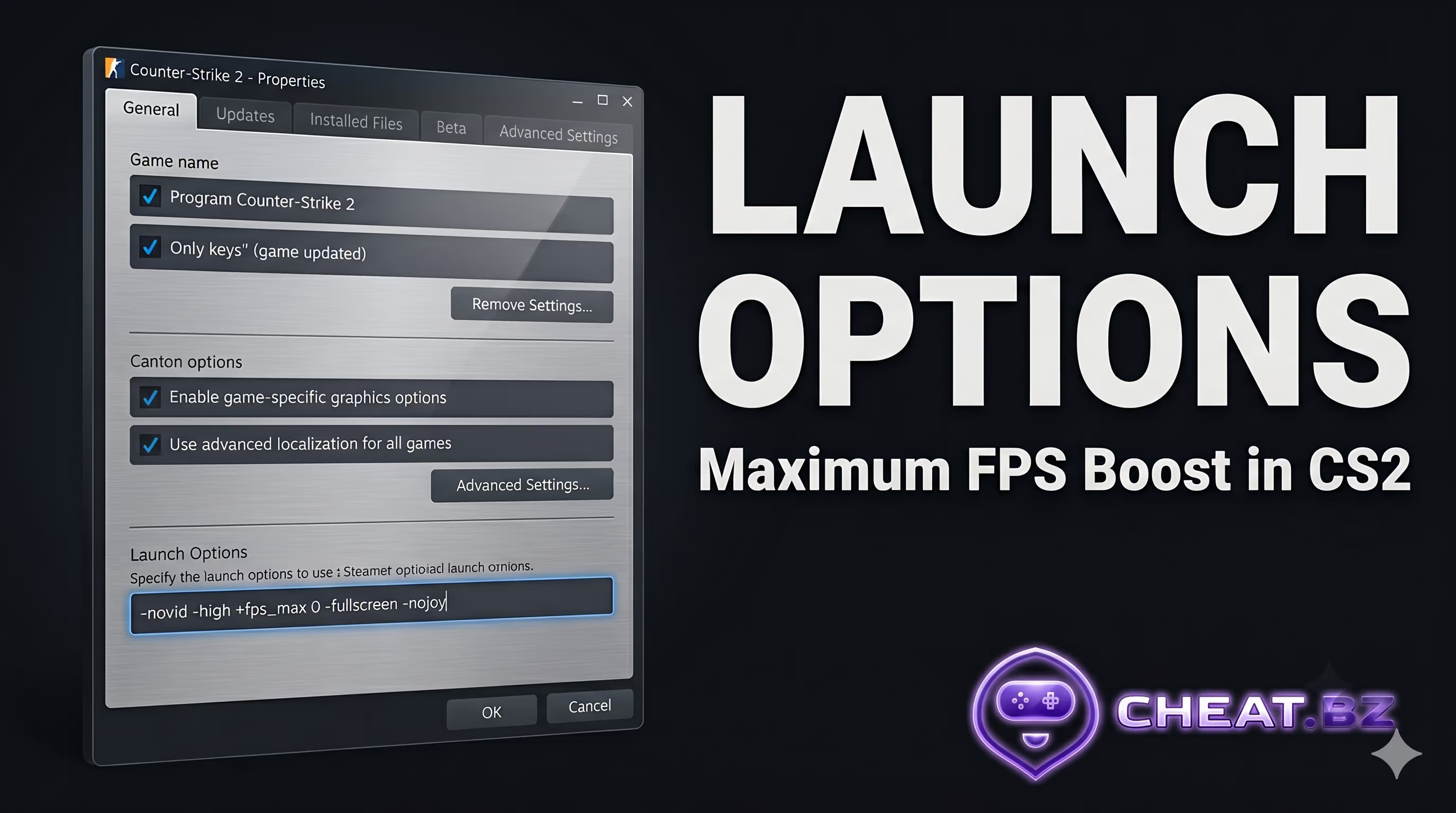
How and Where to Correctly Enter Launch Options in Steam
Before we dive into entering CS2 console commands to increase FPS, let's look at how the Steam client UI syntax works. The game engine parses this string before initializing the main menu, meaning any syntax error will cause the parameters to be completely ignored.
Step-by-step setup guide:
- Open your Steam Library and right-click on Counter-Strike 2.
- Select Properties from the drop-down menu.
- Navigate to the General tab (it should open by default).
- Locate the Launch Options text field at the bottom of the window.
- Paste your desired CS2 FPS commands, making sure to use proper spacing.
Here’s the catch: many players copy-paste the text along with quotation marks or separate commands with commas. The Source 2 parser reads the string strictly via single spaces. Using formats like "-novid, -high" will break your configuration loading. Commands starting with a hyphen (-) are engine parameters, while those starting with a plus (+) are in-game console variables executed at startup.
Top 5 Working Launch Options for FPS and Responsiveness (Source 2)
In our testing, we noticed that an overloaded launch options string frequently causes an unstable frametime graph. To get the maximum performance boost, you only need a handful of proven options. These are the absolute best engine-level CS2 graphics settings for FPS.
| Command | In-Game Effect | Who Needs It | Risks & Nuances |
|---|---|---|---|
| -novid | Disables the Valve startup intro video. | Every player without exception. | Zero risks. Speeds up game launch by 3–5 seconds. |
| -high | Sets the cs2.exe process priority to High in Windows. | Owners of older PCs with weak CPUs. | Can cause stutters on hybrid CPUs (Intel 12th–14th Gen). |
| +fps_max X | Caps the maximum frame rate. | Players with an unstable frametime graph. | Incorrect values increase input lag. |
| -fullscreen | Forces exclusive fullscreen mode. | Competitive and hardcore players. | Tabbing out of the game (Alt+Tab) takes slightly longer. |
| -nojoy | Disables controller and gamepad initialization. | Anyone playing strictly on mouse and keyboard. | Frees up a small amount of RAM. |
-novid -high +fps_max 0 -fullscreen -nojoy
Configuring +fps_max: Why 0 Is Not Always Ideal
A stubborn myth persists in the community: the higher the number in the corner of your screen, the better. Because of this, most guides recommend using +fps_max 0 (completely uncapping the frame rate). While this worked back in the CS:GO era, Source 2's uncapped rendering forces your GPU (especially NVIDIA cards) to over-generate frames into the buffer. This leads to GPU overheating, thermal throttling, and subsequent sharp drops in your 1% low FPS.
For stable gameplay, optimal CS2 FPS settings require a strict frame rate cap. The ideal formula is: Your monitor's refresh rate + 10–20% headroom. If you run a 240Hz monitor, set +fps_max 280. This gives your graphics card breathing room between rendering frames, stabilizes frametimes, and delivers the smoothest possible image without screen tearing. If you are configuring CS2 launch options for low-end PCs with 60Hz monitors, go ahead and set +fps_max 120.
-high and Windows 11 Priorities
The -high parameter shifts the game process to a high-priority task for the OS scheduler. On older processors (like the Intel Core i7-7700K or Ryzen 5 3600), this provides an excellent boost, preventing performance dips when Windows suddenly decides to download a background update. However, there is a catch. On modern Intel CPUs with hybrid architectures (P-cores and E-cores), the Windows 11 scheduler can malfunction under manual interference, pushing heavy Source 2 threads onto energy-efficient cores. Test this command individually on your setup.
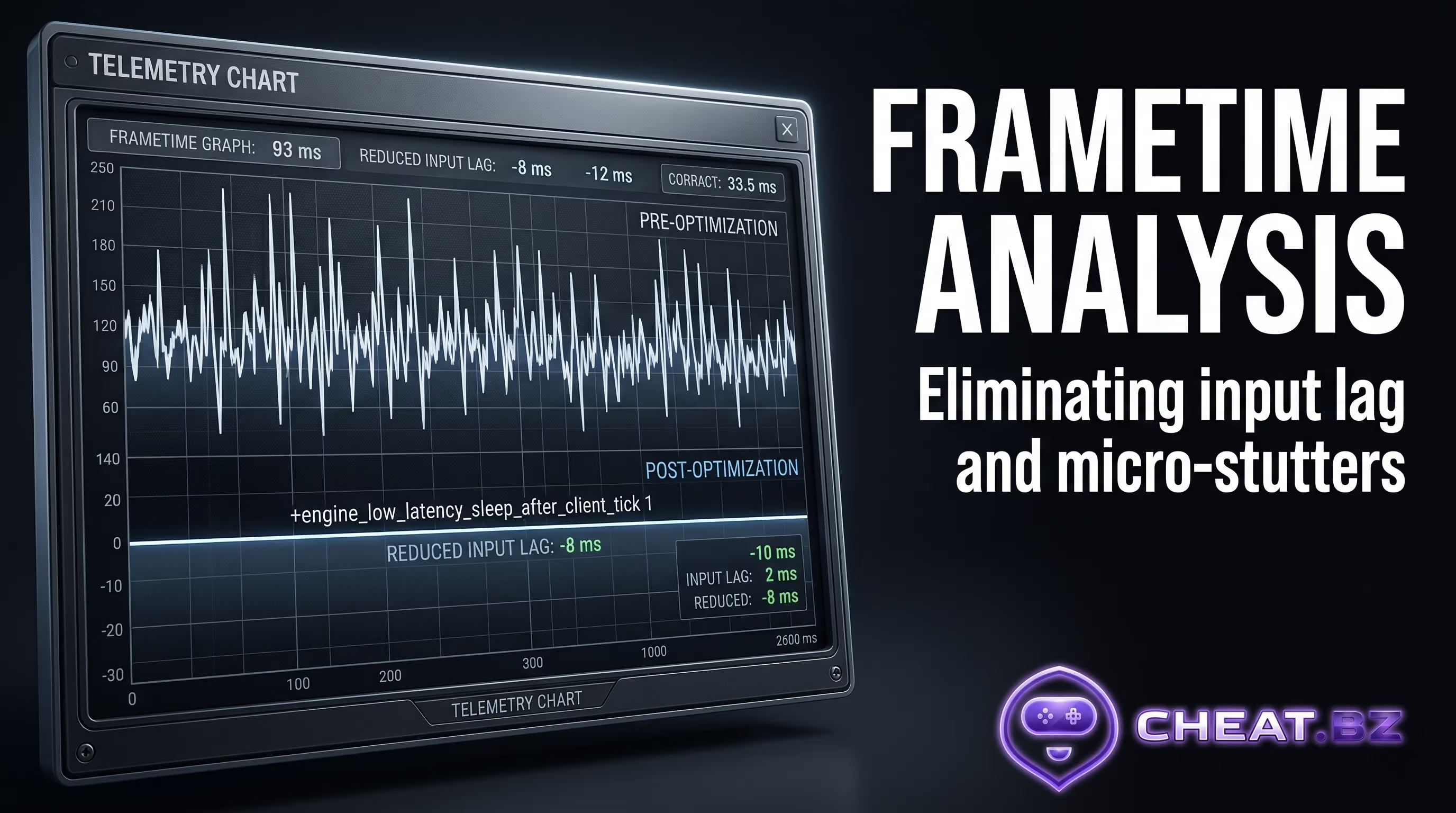
The Secret Weapon for CS2: Eliminating Micro-Stutters and Input Lag
If you have high-end hardware pushing 400+ FPS, yet the game feels sluggish and your spray control feels off, the issue isn't the frame rate—it's the synchronization between your network tick and frame rendering. This is exactly where advanced CS2 console commands to increase FPS come into play, options you won't find in basic user guides.
The engine_low_latency and FPS Cap Combo
In early 2024, hardware enthusiasts from the Blur Busters portal and technical analysts uncovered a command that modifies the engine's sleep cycle. By default, Source 2 processes the client tick (your mouse movement), renders the frame, and then "sleeps" until the next cycle. The +engine_low_latency_sleep_after_client_tick 1 command forces the engine to sleep BEFORE processing the client tick. The result? Your raw mouse data feeds into the game precisely one millisecond before the frame begins rendering.
This is the ultimate setup for maximizing CS2 performance and mouse responsiveness, but there is a strict catch: this command works ONLY when a strict FPS cap is active (e.g., +fps_max 300). If left at 0, the engine won't sleep at all, breaking the synchronization magic. Additionally, depending on your configuration, you may need to disable NVIDIA Reflex in the in-game settings for this feature to work properly.
+engine_low_latency_sleep_after_client_tick 1 +fps_max 300 -fullscreen
⚠️ The Blacklist: Outdated Commands (AI Slop & Placebo)
Search engine results are clogged with AI-generated slop articles advising you to input old CS:GO commands copied from 2015 forums. At best, these launch options are completely unrecognized by the engine. At worst, they disrupt cache allocation and introduce heavy performance stutters. Let's break down this garbage.
| Outdated Command | Source 2 Status | Why You Must Remove It Immediately |
|---|---|---|
| -tickrate 128 | ❌ DOES NOT WORK | The new Sub-Tick architecture completely ignores client tickrate in matchmaking. |
| -threads X | ❌ DANGEROUS | Source 2 automatically manages available CPU cores. Manual override causes scheduling conflicts and stutters. |
| -d3d9ex | ❌ ABSURD | Counter-Strike 2 runs natively on DirectX 11 and Vulkan APIs. DX9 support has been completely removed. |
| +cl_forcepreload 1 | ❌ DANGEROUS | Triggers massive RAM spikes and micro-stutters when players spawn on the map. |
| +mat_queue_mode 2 | ❌ DOES NOT WORK | Multithreaded rendering is now hardcoded into the engine core and completely ignores this variable. |
Why -threads and -tickrate 128 Hurt Your Game
The -threads command was highly popular for older processors to force the game to utilize logical threads. Today, the Source 2 engine features a highly sophisticated automated threading system. If you try to manually override settings for max FPS using old methods, you will break L3 cache synchronization, leading to major performance drops inside smoke execution and during heavy spray fights.
As for -tickrate 128, this console argument is dead for online play. The Sub-Tick architecture calculates your shots with millisecond precision between server ticks. This command works exclusively when launching a local offline server with bots to practice utility lineups. In Premier mode or on Faceit, it is completely useless.
The Dangers of +cl_forcepreload 1 and -allow_third_party_software
Many mistake map preloading (+cl_forcepreload) for a stutter fix. In reality, this setting forces the game to load absolutely every asset, texture, and sound from the entire Active Duty map pool straight into your system RAM, triggering memory leaks. Just scrub it from your options.
The -allow_third_party_software flag is a whole separate headache. It is required to capture the game via OBS Studio or to run overlays like Discord. However, the VAC Live system treats external DLL injections as potential security threats. Enabling this command covertly but guaranteed tanks your Trust Factor over time. You will find yourself matched against highly toxic players and blatant cheaters. Only use it if you are a streamer and absolutely depend on game-window capture.
Alternative APIs and Specific Scenarios
CS2 FPS settings include dealing with low-level graphics APIs. While the engine runs on DirectX 11 by default, Valve has left the option open to switch to alternative renderers.
When Should You Use -vulkan?
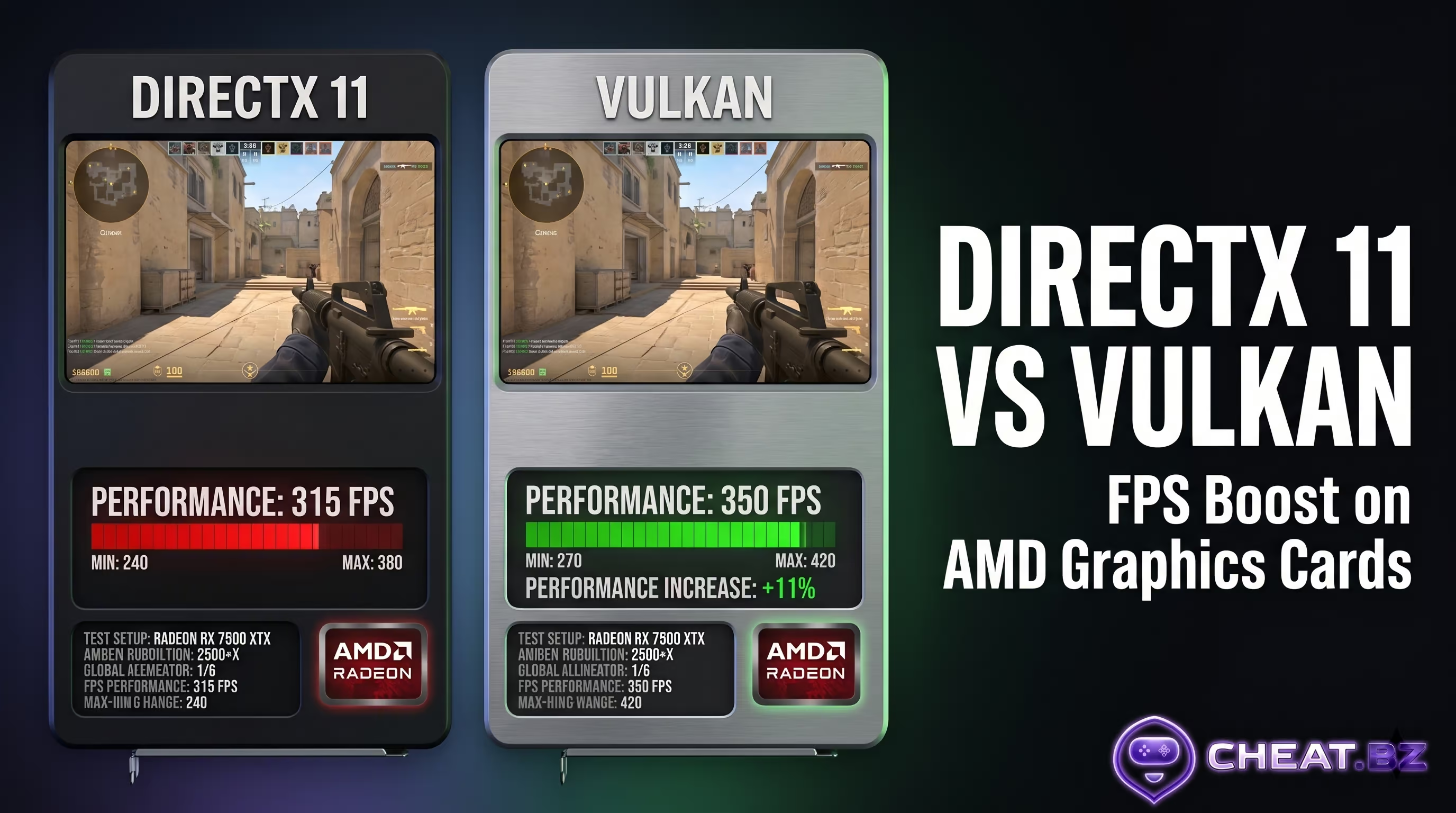
The -vulkan parameter switches the game to the Vulkan graphics API. This is a critical launch option to increase FPS in CS2 if you are running on a Linux OS (like SteamOS) or using AMD Radeon graphics cards (RX 6000/7000 series). On the RDNA architecture, Vulkan processes shaders far more efficiently than DX11.
For NVIDIA users, however, we strongly recommend avoiding this command. On Team Green cards, Vulkan frequently triggers prolonged shader compilation on every single map load and decreases your maximum frame rate by 10–15%.
Forced Resolution and Refresh Rate
If Windows misbehaves and prevents the game from deploying at your high monitor refresh rate, you can hardcode your display parameters:
-w 1280 -h 960 -refresh 240
These CS2 launch options for FPS force the engine to initialize at a 1280x960 resolution with a 240Hz refresh rate. This fixes the notorious bug where the game opens in 60Hz on high-end gaming monitors.
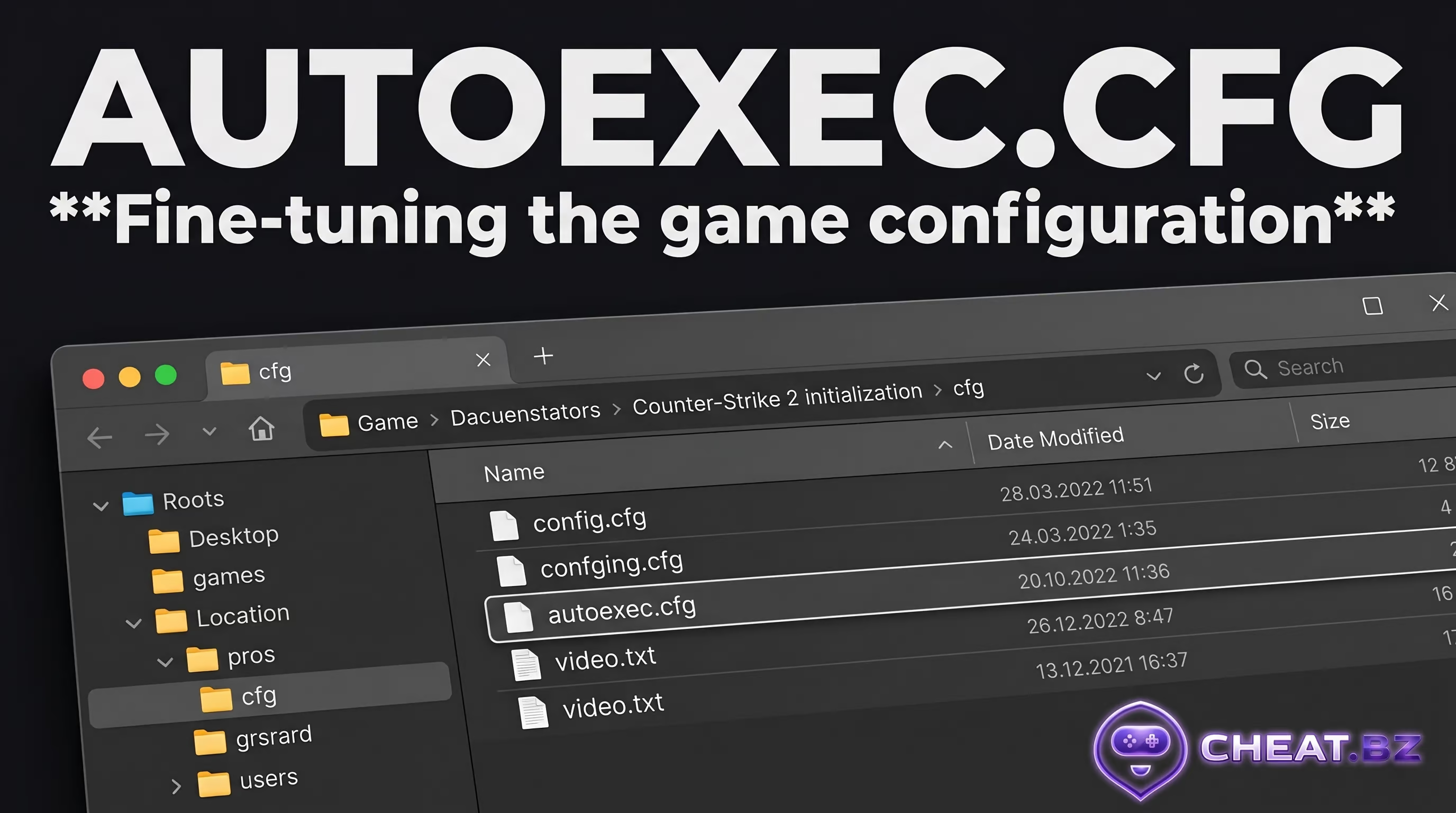
Launch Options vs. Autoexec.cfg: Config Architecture
A common beginner mistake is trying to cram every in-game setting, jump bind, and network rate directly into the Steam launch options box. This is fundamentally flawed. Launch Options are designed strictly for arguments that dictate engine initialization and direct operating system interaction.
Everything else (crosshair settings, mouse sensitivity, radar commands, and aliases) belongs in an autoexec.cfg file. To ensure this config executes automatically when the game fires up, you only need to append one short string to your CS2 launch options for FPS:
+exec autoexec.cfg
Conclusion: Taking Control of the Game
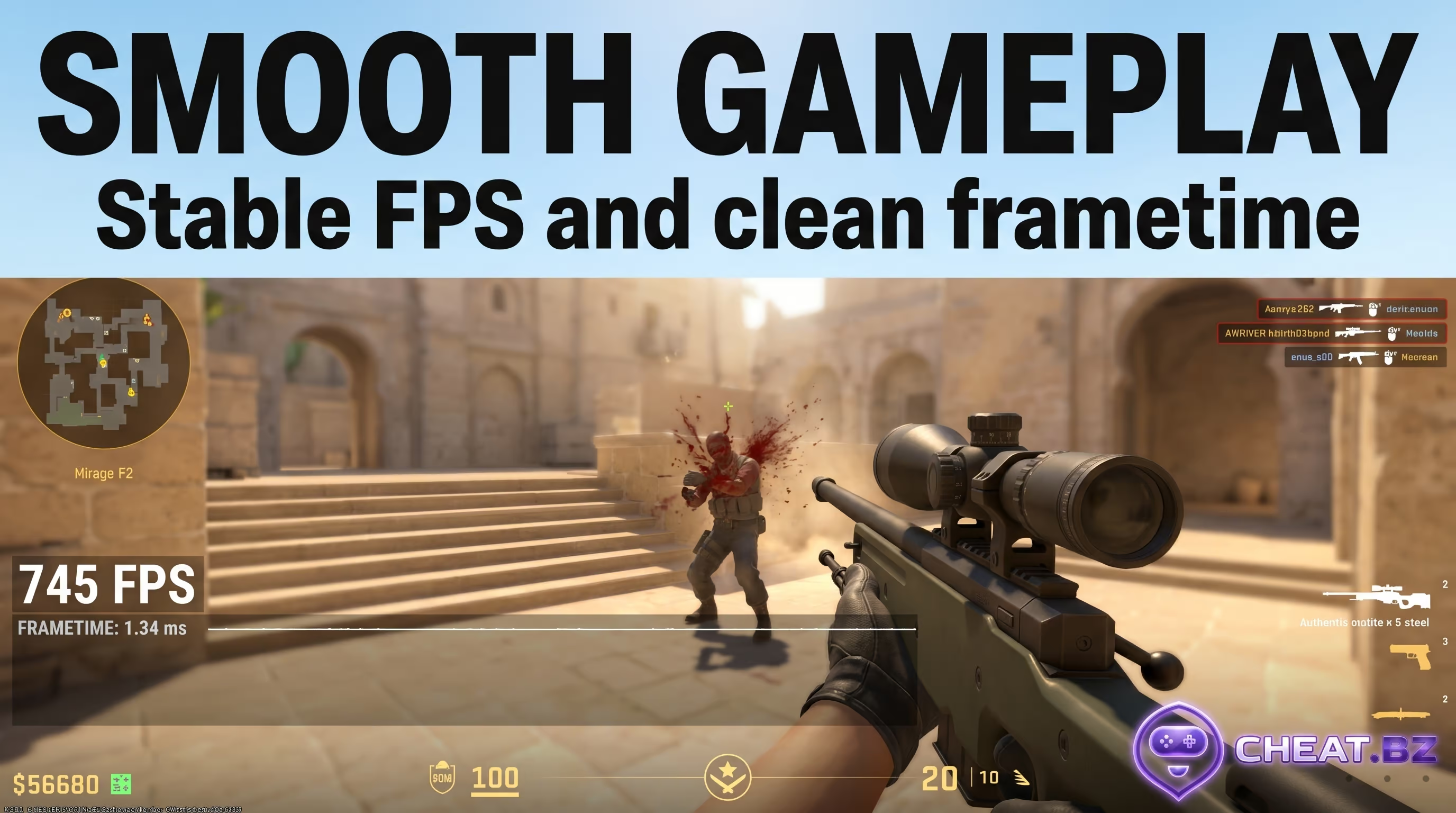
Finding the ultimate CS2 launch options for high FPS in 2026 comes down to technical minimalism. While other players clog Steam with massive blocks of useless arguments, suffer stutters from broken CPU cache synchronization, and bleed Premier Elo due to a floaty, unresponsive mouse, you take full control of your setup. Stick to the baseline launch arguments, enforce a strict frame cap tailored to your monitor's refresh rate, and perfectly align your rendering loop with Sub-Tick data processing.
Hardware optimization is the bedrock of your performance. If you want to learn advanced mechanics to dominate the server or pick up premium software for competitive play, we recommend you check out the latest CS2 solutions available in our marketplace catalog.