

How to Change Viewmodel in Rust: Console Commands, Binds, and FOV Setup
Anyone who has roamed Rust with an AK-47, an M249, or a rocket launcher knows the frustration: the weapon model hogs nearly a quarter of your screen on the right, creating a massive blind spot. During monument firefights, that bulky gun model can easily block an enemy pushing your angle. Facepunch never added a dedicated viewmodel distance slider to the settings menu, so pulling your hands back in Rust requires using the developer console. In our testing, we evaluated the full combination of console variables and field-of-view settings to break down how to stretch your viewmodel in Rust, clear your screen, and keep your FPS intact.
Quick answer: To pull your hands back and shrink your weapon model in Rust, press F1 to open the console and enter graphics.vm_fov_scale false. Your weapon and hands will instantly push forward, opening up your screen. For maximum visibility, open your graphics settings and crank your Field of View (FOV) to 90. To revert to the default viewmodel, simply run graphics.vm_fov_scale true.
Quick Overview
Before tweaking your viewmodel in Rust, here are the essential technical details you need to know:
- Core command:
graphics.vm_fov_scale falsepushes your weapon forward (reset to default withtrue). - How FOV works: The command functions at any FOV setting (60 to 90), but the extended viewmodel effect is only truly noticeable at 90.
- Switching hands: Running
graphics.vm_horizontal_flip 1switches your weapon to the left hand, while0returns it to the right. - Saving your config: After entering your commands, always execute
writecfg; otherwise, your settings will revert when you restart the game. - FPS impact: Extending your viewmodel costs 0 FPS, though playing at FOV 90 can drop frames by 5–15% on lower-end systems.
- Account safety: These are official Facepunch client commands. Easy Anti-Cheat (EAC) will not ban you for using them.
- Console Edition (PS/Xbox): Console players have no F1 developer console, meaning you can only adjust your general FOV slider in the display menu.
Viewmodel Configurations by Playstyle
If you want to configure your viewmodel in Rust for your specific shooting style, choose one of the setups below. If native visibility still isn't enough and you need a decisive tactical edge, check out our private Rust cheats featuring smart aimbot and loot ESP. One vital rule: always enter the save command writecfg separately rather than chaining it directly to your keybinds.
| Player Scenario | F1 Console Command String | Tactical Benefit |
|---|---|---|
| Maximum Visibility (Classic) | graphics.fov 90graphics.vm_fov_scale falsewritecfg |
Weapon model pushed forward, FOV maxed out, right side of your screen completely clear. |
| Left-Hand / Right-Hand Peeks | graphics.vm_horizontal_flip 1graphics.vm_fov_scale falsewritecfg |
Weapon switched to the left hand (value 1), clearing your sightlines for standard right-hand peeks. |
| PvP Toggle Setup | bind z ~graphics.vm_fov_scale true;graphics.vm_fov_scale falsethen separately: writecfg |
Instant one-key toggle between stretched and default viewmodels on the fly. |
Step-by-Step Guide: How to Change Viewmodel via F1 Console
Rendering in Rust is divided: the game world renders through one camera, while your hands and weapon render through a separate overlay camera to keep barrels from clipping through walls. Pushing your viewmodel forward takes just two quick steps.
Step 1: Set Your Field of View in the Game Menu
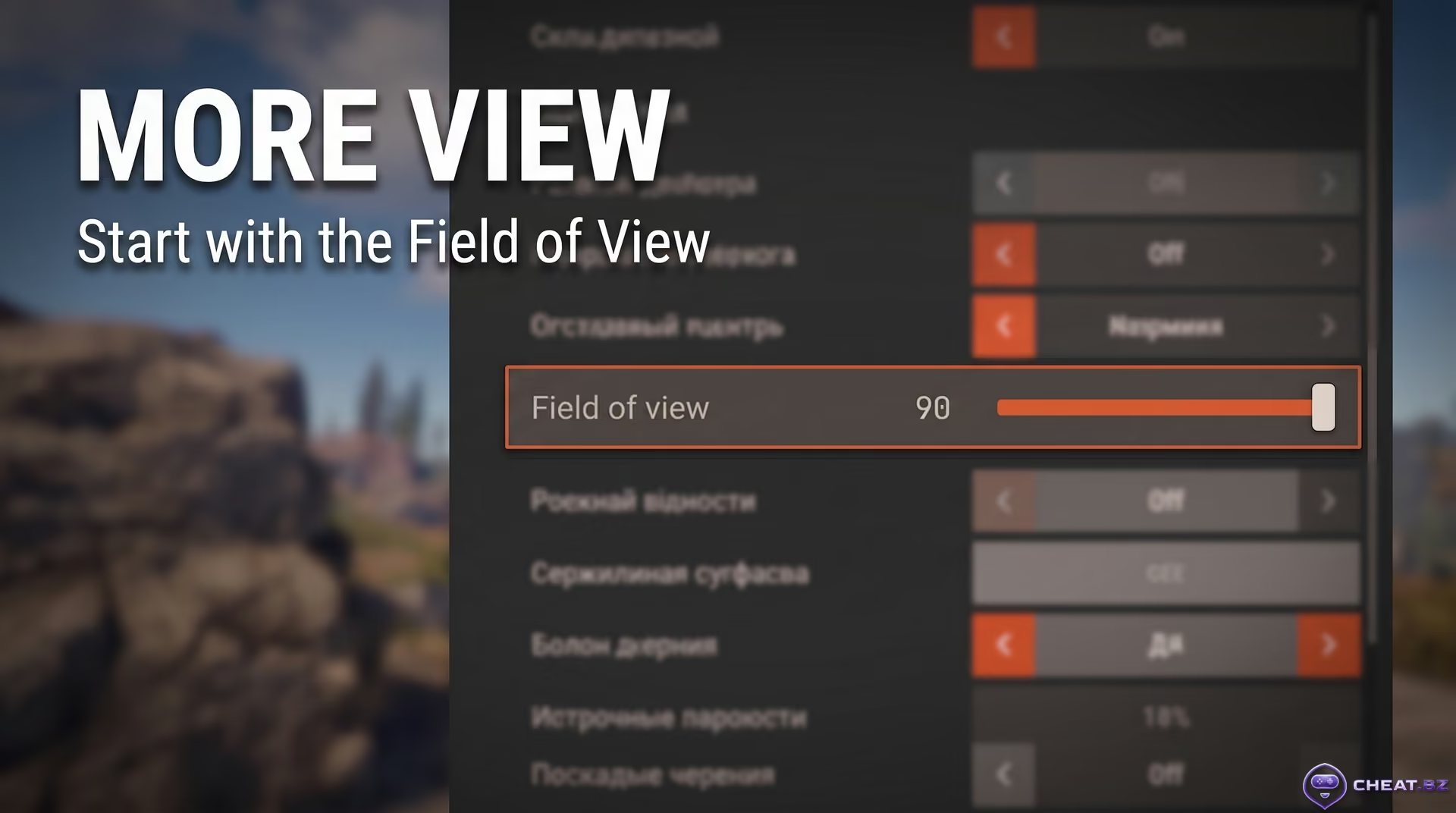
To get the maximum viewmodel distance in Rust, hit Esc, open Options → Graphics, and locate the Field of View slider. Crank it to the maximum setting of 90 (the standard range is 60 to 90). The viewmodel command technically activates at 70 FOV, but the visual difference is barely noticeable because the camera remains too close. If you are worried about frame rate drops at max FOV, check out our guide on the best Rust graphics settings to maximize FPS and stability.
Step 2: Enter the Command in the Developer Console
The primary command to extend your viewmodel in Rust is entered through the developer console. Press F1, type the command into the input bar at the bottom, and hit Enter:
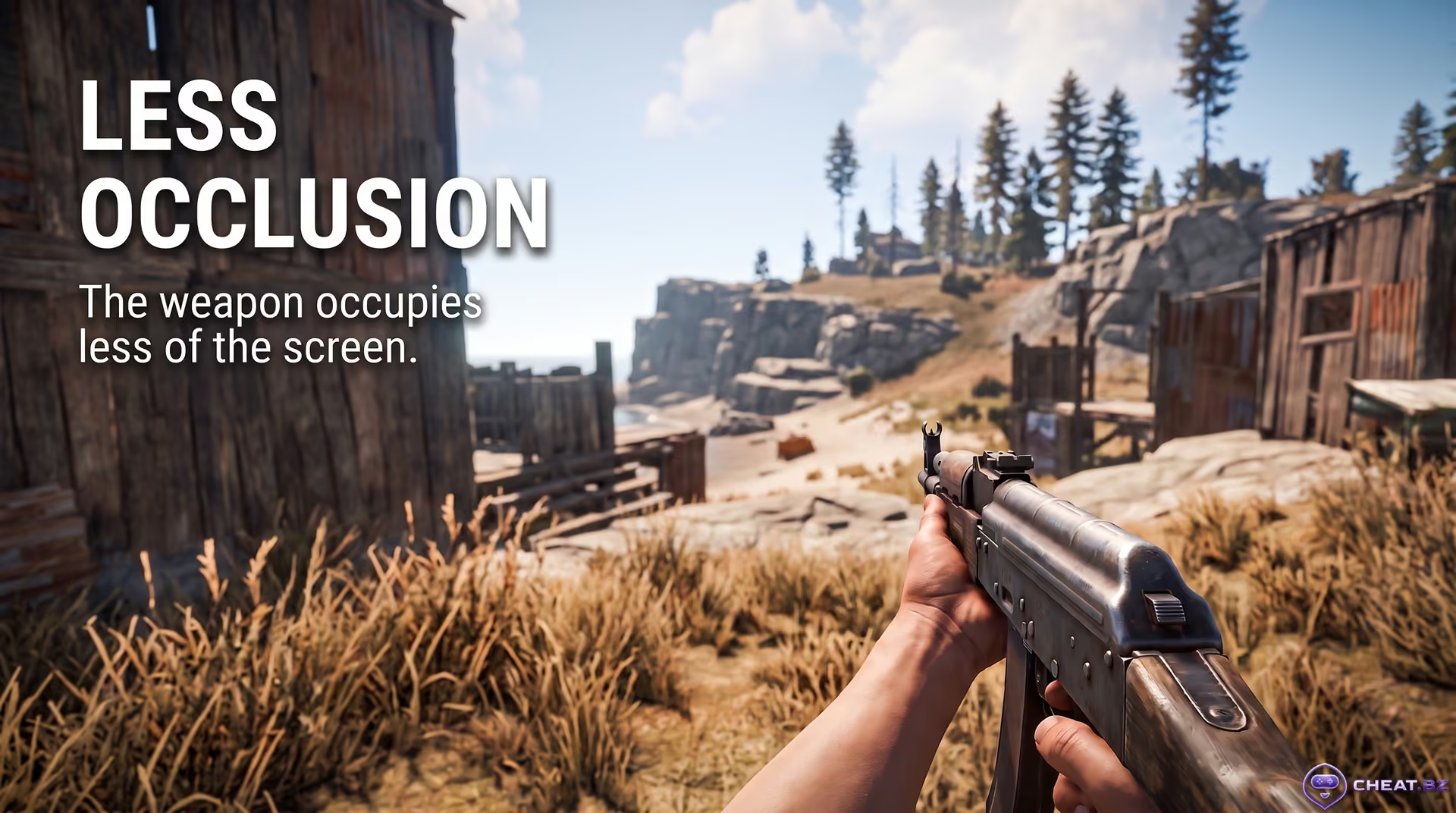
graphics.vm_fov_scale falseYour weapon model will instantly shift forward. Sightlines around your crosshair open up immediately, and the bulky receiver stops cluttering your view. Console commands are not case-sensitive, and quotation marks are not required.
How to Reset to Default Viewmodel
If aiming down the iron sights of a Semi-Automatic Rifle or Revolver feels awkward due to the smaller sight profile, reverting is simple. Open F1 again and run graphics.vm_fov_scale true to snap your hands back to the default position.
Left-Hand Viewmodel in Rust: How to Switch Hands
Many experienced players prefer running a left-handed viewmodel in Rust. In competitive firefights, you will constantly use right-hand peeks to expose as little of your player model as possible. When your gun sits in your right hand, the receiver covers the exact corner you are trying to slice. Flipping the weapon to your left opens up that line of sight completely.
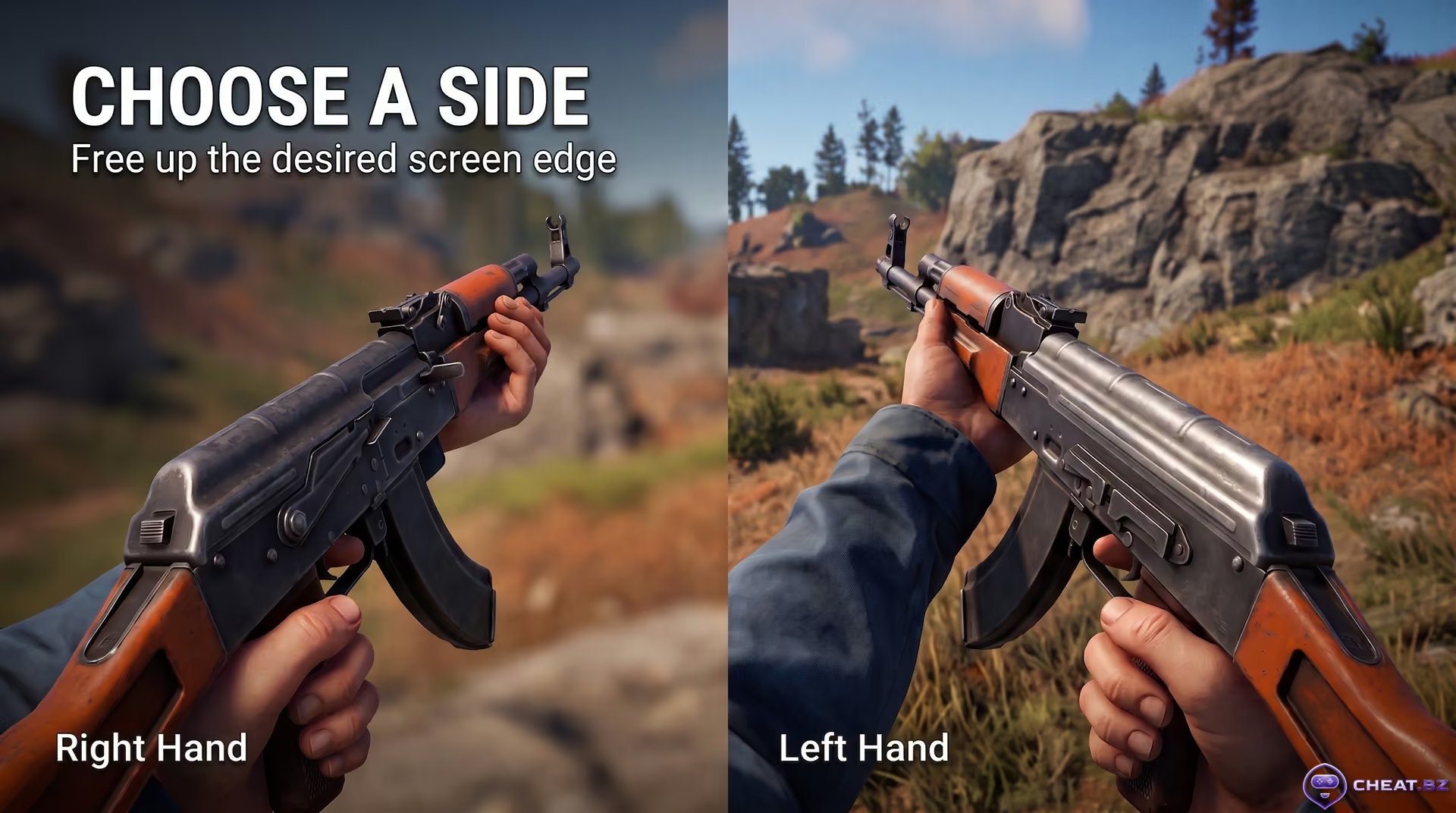
Weapon placement is controlled by graphics.vm_horizontal_flip. Make sure to use the right value:
graphics.vm_horizontal_flip 1— flips your weapon to the left hand (mirrored view).graphics.vm_horizontal_flip 0— returns your weapon to the standard right hand (default).
Keep in mind: this command only mirrors the first-person model on your monitor. Third-person animations remain right-handed to all other players on the server. Because bullets in Rust originate directly from your player camera (eyes), ballistics, recoil patterns, and bullet spread do not change whatsoever. You can pick the best weapons in Rust based purely on stats—running a left-hand grip has zero impact on recoil control or damage output.
Custom Keybinds: Toggling Viewmodel and Hand Placement on the Fly
Typing console commands during an active raid or monument run is impractical. Binding these toggles to dedicated keys lets you adjust your viewmodel and weapon side instantly mid-fight.
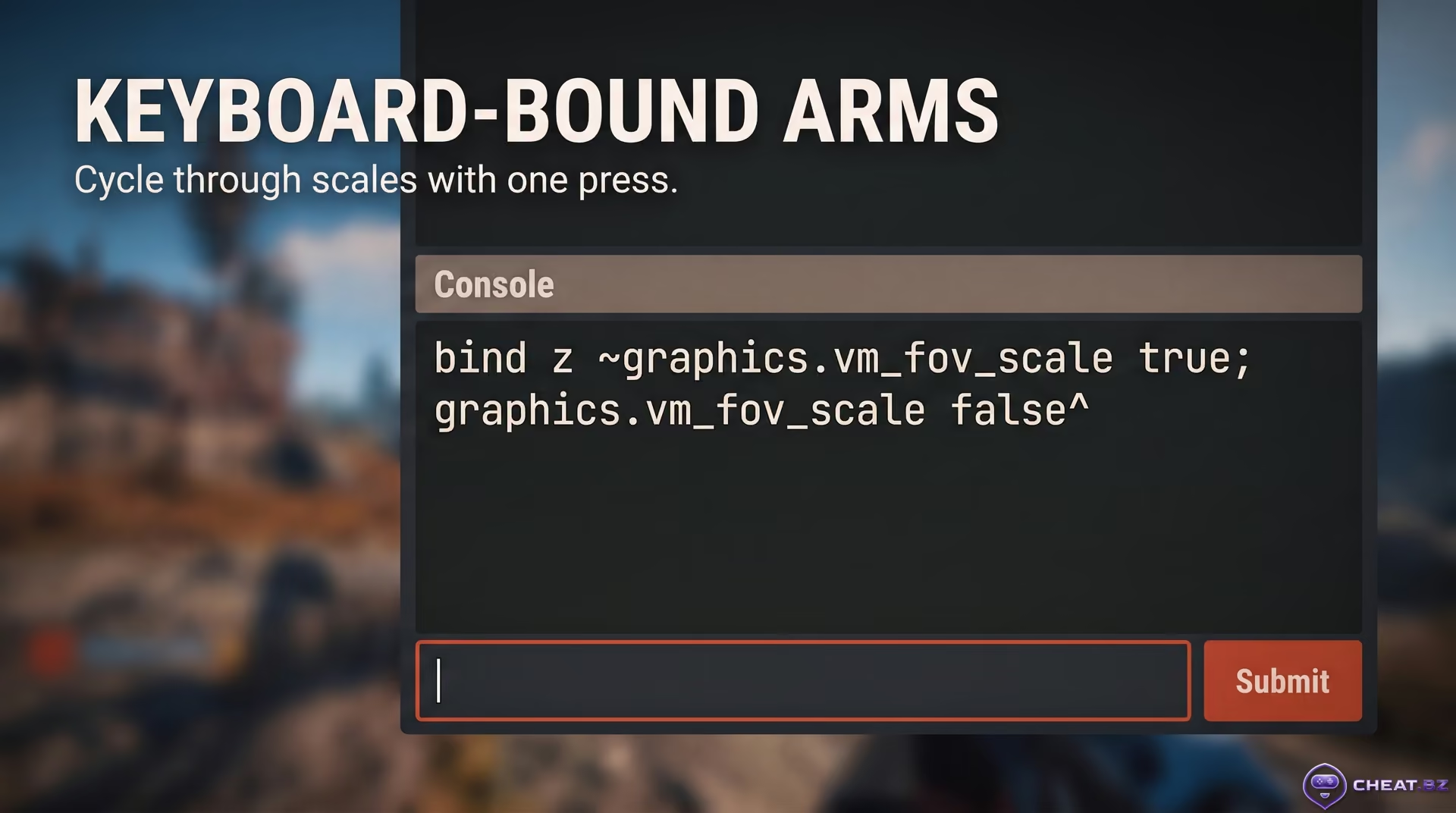
Keybind to Cycle Viewmodel Distance (Single Key Toggle)
To create a seamless viewmodel toggle in Rust, use the tilde ~ cycle operator. In the Rust console, the tilde acts as a cycle switch: press the key once to push the viewmodel back, press it again to return to default. Open F1 and enter:
bind z ~graphics.vm_fov_scale true;graphics.vm_fov_scale falseYou can replace Z with any available key. Note: do not append writecfg to this bind with a semicolon! Rust would treat saving as a third step in the cycle sequence, causing a micro-stutter every third press while writing data to your drive.
Keybind to Switch Between Left and Right Hands
You can set up a similar toggle to switch hands instantly: tap the key to bring your weapon left, tap it again to snap back right. This setup works exceptionally well on side mouse buttons (Mouse4/Mouse5):
bind x ~graphics.vm_horizontal_flip 0;graphics.vm_horizontal_flip 1Pressing X will swap your weapon from side to side based on whichever angle you are holding or peeking.
How to Clear or Unbind a Key
Running bind [key] "" with empty quotes completely unbinds the selected key, wiping its assigned command. If you accidentally overwrite an essential control key (such as sprint, jump, or reload), unbinding it will not automatically restore the previous action! After wiping the bind, head into Options → Controls and manually reassign your desired action. Always bind viewmodel commands to unused keys.
How to Save Settings Permanently and Fix Config Resets
A common issue in Rust is configuring your viewmodel commands, playing through a session, and returning the next day only to find your weapon back in your face. Rust often stores active console variables in RAM and fails to write them to your persistent config files before closing.
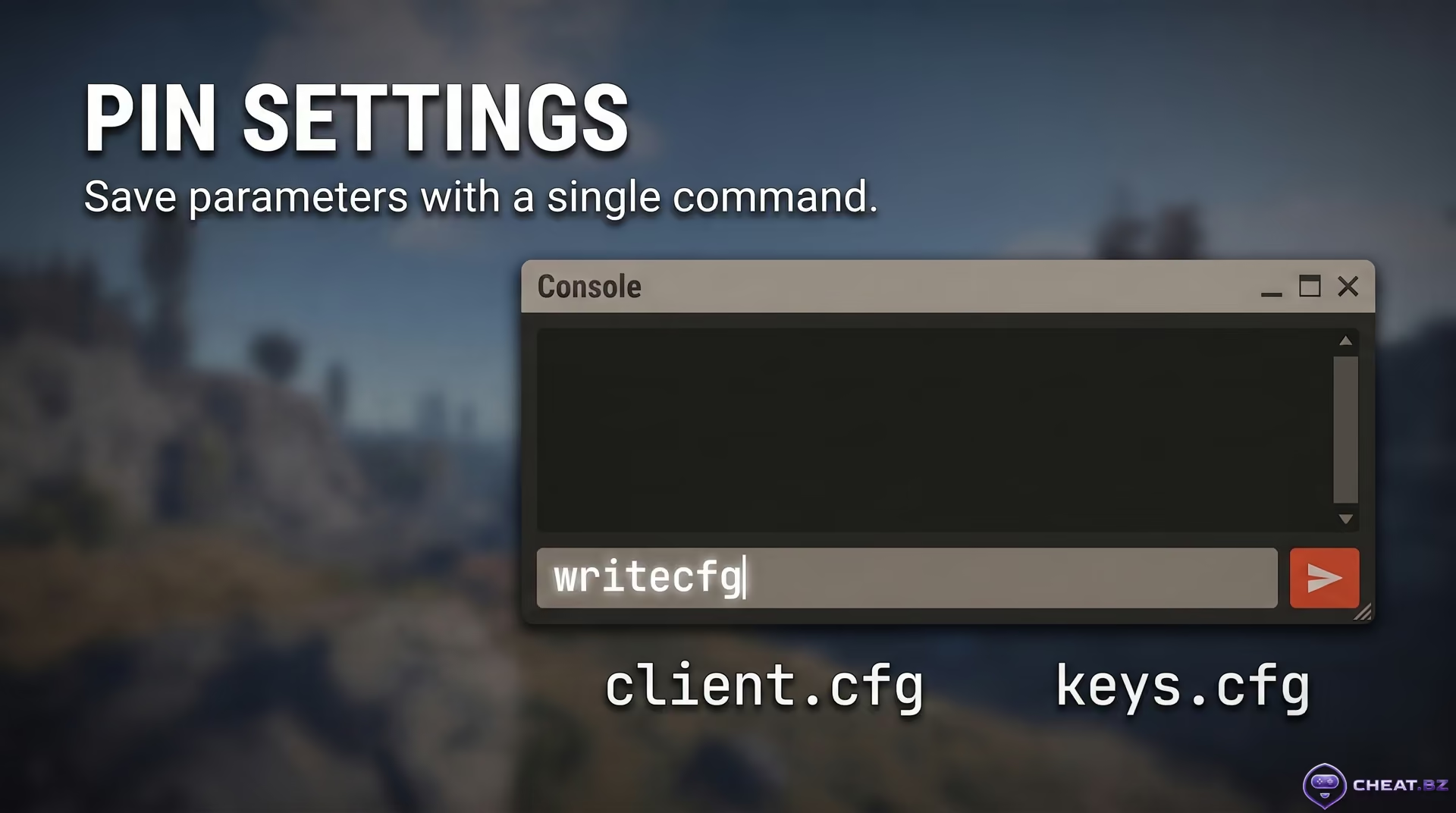
Method 1: Instant Saving via the writecfg Command (Recommended)
Once you have adjusted your viewmodel scale, hand placement, and keybinds, open the F1 console and execute the save command:
writecfgThis instantly writes all active configuration variables to your drive: graphics settings go into client.cfg, while your custom keybinds are saved to keys.cfg. Your viewmodel will remain locked across restarts.
Method 2: Manual Config Editing and File Permissions Check
If your settings continue to reset on startup, navigate to your game directory at Steam\steamapps\common\Rust\cfg\. Right-click both client.cfg and keys.cfg, select Properties, and check whether "Read-only" is checked. If read-only mode is active, Rust cannot write your new settings to the drive. Config resets also happen if you force-close the game using Alt+F4 or if Steam Cloud sync overwrites local changes with an older cloud file.
Console Commands Registry: Working Commands vs. Fake Variables
When searching for guides on how to change viewmodel in Rust, you will run across outdated or entirely fabricated commands copied from other shooter engines. Here is the verified breakdown of commands that actually function in the current client versus fake variables to avoid:
| Command / Expression | Rust Client Status | Actual Function | Verdict |
|---|---|---|---|
graphics.vm_fov_scale false |
Official cvar | Unlinks viewmodel scale from base FOV and pushes weapon model forward | Working (Recommended) |
graphics.vm_horizontal_flip 0/1 |
Official cvar | Switches hand placement: 0 for right hand, 1 for left hand | Working (Recommended) |
writecfg |
Official command | Forces an immediate write of all active settings to client.cfg and keys.cfg | Working (Recommended) |
bind X input.left |
Non-existent | Returns console error: "Command 'input.left' not found" | Fake (input namespace does not control strafing) |
graphics.vm_fov [number] |
Non-existent | Returns "Command not found" | Fake (carried over from Counter-Strike guides) |
handsfov [number] |
Non-existent | Has never existed in Rust engine code | Fake |
graphics.vm_horizontal_offset |
Non-existent | Rust does not support horizontal viewmodel offsets | Fake |
render.fov [number] |
Non-existent | Does not exist in the Unity client engine | Fake |
Troubleshooting: Fix Viewmodel Not Changing and Resetting Settings
If you entered the commands but your viewmodel still hasn't moved, check these three common causes:
Issue 1: Command Entered, but Weapon Distance Hasn't Changed
This almost always stems from a low base FOV. If your Field of View slider is set between 60 and 75, the visual difference from extending the viewmodel is minimal. Open the graphics menu, push your Field of View to 90, and confirm that graphics.vm_fov_scale false is active in the console.
Issue 2: Viewmodel Snaps Back to Default After Restarting
Rust closed before saving your active memory buffer to disk. Open F1, manually enter writecfg, and press Enter. If that fails, browse to Rust\cfg\ and uncheck "Read-only" in the Properties window of client.cfg and keys.cfg.
Issue 3: Keybind Stops Executing Its Original Action
You bound a viewmodel command to a key already tied to a default gameplay action. Clear the bind by running bind [your_key] "", open the in-game Controls menu, and reassign the original action. Only map viewmodel toggles to unassigned keys.
Anti-Cheat Safety, Recoil Impact, and Console Edition Limitations
Let's cover the three most common questions players have: can you get banned, does viewmodel affect recoil spray, and how does this work on consoles?
Can Easy Anti-Cheat (EAC) Ban You for Viewmodel Commands and Binds?
You cannot get banned for this—there is zero risk. The graphics.* cvars and F1 console binds are built-in features developed directly by Facepunch Studios. Easy Anti-Cheat monitors for external memory injection and unauthorized background processes; native client console commands are fully permitted on all official and modded servers.
Does Extending Viewmodel Affect Recoil, Spray Patterns, or Bullet Spread?
Changing your viewmodel distance modifies your local first-person visual render only. Server-side ballistics, spray patterns, bullet velocity, and hitboxes remain 100% identical. The only practical difference is that open iron sights will appear marginally smaller on your monitor, which takes a few minutes of adjustment. If you run a Holosight, 8x Zoom Scope, or 16x Scope, shooting feels identical from your very first spray.
Can You Change Viewmodel Distance in Rust Console Edition (PlayStation & Xbox)?
PlayStation 4/5 and Xbox One / Series X|S run Rust Console Edition, developed separately by Double Eleven. The F1 developer console is completely disabled for players on console versions. The only way to improve visibility on consoles is by maximizing the Field of View slider in the display settings (up to 85–90 degrees). Decoupling weapon viewmodels independently is currently impossible on console.
Final Thoughts
A couple of native console commands and a dedicated toggle bind completely clear bulky weapon models off your screen, handing you cleaner sightlines in competitive PvP. Test out both right- and left-handed grips, always lock your config with writecfg, and explore our full collection of survival and combat breakdowns in the cheat.bz tech guide database.