

What Is the CS2 Spin Command? Console Binds vs. Cheat Spinbots
When Valve rebuilt its flagship competitive shooter on Source 2, player movement and input mechanics received a massive overhaul. Legacy CS:GO configs and classic console commands broke overnight. We’ve all been there: you need to step away from your PC during warmup without getting kicked, or you need to snap 180 degrees when taking fire from behind. But enter the old command into the console, and your character starts strafing awkwardly into a wall instead of rotating. In this guide, the team at private cheat provider cheat.bz breaks down how to enable a legit spin command in CS2, why old binds no longer rotate your view, and how native console commands differ from cheat spinbots.

Key Takeaways
A legit spin command in Counter-Strike 2 is toggled directly through the developer console using +turnleft (rotate view left) and +turnright (rotate view right). To stop spinning, simply enter -turnleft or -turnright.
- Source 2 decoupled movement from camera angles: Legacy commands like
+leftand+rightnow force your player model to strafe sideways, while dedicated turn commands control camera rotation. - Spinning in place won't prevent AFK kicks: The server-side Idle Tracker kicks you after exactly 180 seconds if your character model stands still, even if your camera is continuously spinning.
- How the AFK script behaves: Chaining movement and turning with
+forward; +turnleftonly keeps you connected on continuous community servers. In standard matchmaking, round resets respawn your character facing a wall, freezing your position and triggering an idle kick. - Instant 180-degree turn: You can snap 180 degrees with a slight wrist flick using a safe sensitivity bind set to
m_yaw 0.1—configured specifically for native 16:9 or stretched 4:3 aspect ratios. - Cheat spinbots (Anti-Aim) guarantee a ban: Third-party cheats manipulate network packets to desync head hitboxes, which VAC Live's server-side machine learning flags almost instantly.
Below, we break down everything in detail—from exact console syntax to setting up an autoexec config so your settings persist across game restarts.
Quick Verdict: Console Binds vs. Cheat Spinbots
A legit console spin in CS2 is enabled using native developer commands: +turnleft (yaw left) and +turnright (yaw right). In contrast, a cheat spinbot is third-party software that intercepts network packets and desyncs character hitboxes. Gamers often use the term "spinbot" loosely to describe two completely different mechanics. Native spin commands are built directly into the Source 2 engine by Valve for controller accessibility, debugging, and smooth camera panning. The game engine treats these inputs like standard keypresses, making a ban physically impossible. On the flip side, cheat-driven spinbot software rotates your character model at impossible speeds to prevent other cheaters from landing hits.
In simple terms, a cheat spinbot forces the server to register the player looking straight down or spinning erratically, even though the cheater's own first-person display remains completely stable. Console commands will never make you bulletproof—they simply rotate your view. Cheat software, however, actively breaks core game mechanics for Hack-versus-Hack (HvH) matches. If you run this type of software on official Valve servers, VAC Live detects the unnatural snap angles within seconds, immediately aborts the match, and flags the account with a ban.
When an account gets flagged by modern kernel-level anti-cheat solutions, the penalty often extends beyond the profile to hardware identifiers across the motherboard and storage drives. Players dealing with hardware bans rely on an HWID Spoofer to mask system serial numbers before launching the game client.
If you simply want a CS2 spin command for quick breaks, warmups, or cinematic screenshots, you don't need third-party utilities. Everything is built directly into the game client. The bottom line is straightforward: native console commands are 100% safe, while running third-party spinbot software puts your account and inventory straight into VAC Live's penalty crosshairs.
Comparison between legit console rotation and cheat-driven Spinbot software:
| Feature | CS2 Console Commands (Source 2) | Cheat Software (Spinbot / Anti-Aim) |
|---|---|---|
| Execution Method | Official developer console (~) | Third-party loaders, injectors, kernel drivers |
| Commands / Logic | +turnleft / +turnright |
Memory injection and UserCmd packet manipulation |
| Hitbox Alignment | Perfect alignment with visible model | Artificially desynced and concealed from incoming fire |
| VAC Ban Risk | 0% (fully permitted) | 100% (swift game ban / cooldown) |
| AFK Protection | Only when combined with forward movement | Useless (triggers rapid server bans) |
| FaceIT Compatibility | Yes, fully functional | Instant kernel-level anti-cheat ban |
Source 2 Input Architecture: Why Old Commands Don't Spin
Migrating to the Source 2 engine completely dismantled legacy muscle memory. In CS:GO, directional movement and view angle calculations shared underlying input routines. If you rely on the old CS:GO spin command, typing +left into the console no longer works—Valve overhauled input handling from the ground up. In the previous game, that exact command continuously rotated your camera to the left, which players used for years to grab a quick drink during warmup.

When Valve introduced the sub-tick system, they eliminated legacy input ambiguities. You can explore the core engine mechanics on the official Valve Developer Community. Previously, movement commands and camera rotation often interfered with each other during advanced movement and jump mechanics. In CS2, physical player movement and camera orientation are strictly decoupled. Now, entering +left is functionally identical to holding down your "A" key: your character simply strafes left until hitting an obstacle, while your crosshair remains locked forward.
How input commands changed from CS:GO to CS2:
| Intended Action | CS:GO Command | CS2 Command | Player Action in CS2 | Status on Official Servers |
|---|---|---|---|---|
| Rotate view left | +left |
+turnleft |
Smoothly rotates camera left | Works natively |
| Rotate view right | +right |
+turnright |
Smoothly rotates camera right | Works natively |
| Strafe left | +moveleft |
+left |
Strafes left across the map | Standard movement |
| Strafe right | +moveright |
+right |
Strafes right across the map | Standard movement |
| Rotation speed | cl_yawspeed <value> |
Removed by Valve | Returns "Unknown command" | Stripped from engine |
Movement and ViewAngles Decoupling: Strafing vs. Camera Rotation
Under the hood, CS2 splits client input into two distinct vectors: movement velocity and view angles. The movement vector drives the character's legs—applying directional velocity in world space. When +left is active, the client continuously sends an impulse to strafe left. Your operative sidesteps continuously, but your weapon remains locked onto its original heading.
In contrast, horizontal yaw rotation relies on completely separate functions. The +turnleft and +turnright commands rotate your camera across the yaw axis. Your world coordinates remain fixed while your viewport smoothly orbits around its center. The character model's legs dynamically shift in place to match the torso angle. This design keeps your operative firmly planted—preventing you from drifting off crates, sliding down ledges, or walking out of cover into an enemy line of fire.
Command Syntax for +turnleft/+turnright and cl_yawspeed Status
Managing turn commands in the developer console is straightforward. The plus (+) and minus (-) prefixes act as a state toggle. A plus prefix simulates holding a physical key down, while a minus prefix simulates releasing it. If you submit +turnleft in the console, your character will rotate indefinitely until you execute the release command: -turnleft. Simply closing the console or pressing Escape will not stop the rotation.
Outdated guides frequently suggest cranking your rotation rate with cl_yawspeed 1000 to spin like a helicopter. In CS2, Valve completely removed this ConVar from the client binaries. Entering it outputs an "Unknown command" error, even on local servers with sv_cheats 1 enabled. Camera rotation speed via +turnleft is hardcoded to exactly 210 degrees per second in the engine, making it impossible to accelerate using standard console variables.
Preventing AFK Kicks: How the Idle Tracker Works
Most players search for a CS2 spin command for one practical reason: stepping away to grab a drink or answer the door during warmup without dropping from the server. In CS:GO, spinning in place was enough to fool the idle timer. In Counter-Strike 2, Valve completely rewrote AFK detection routines, rendering those legacy tricks useless.

Official matchmaking servers now utilize an active Idle Tracker that monitors player activity. Instead of merely checking for active input signals, the server tracks whether your character model changes physical coordinates in the map space. If your origin point stays static, the server initiates an internal countdown. Here is how the tracker evaluates inactivity and why rotating your camera in place fails to prevent a disconnect.
Why Spinning in Place Triggers a Kick After 180 Seconds
The server-side idle detection validates multiple telemetry factors simultaneously: active key states, view angle changes, and spatial coordinate displacement. If you only execute +turnleft, your crosshair spins continuously, but your linear velocity remains zero. Your character origin point never shifts.
The server quickly identifies this automated behavior. If a player remains stationary for three consecutive rounds (or exactly 180 seconds in modes like Deathmatch), the server terminates the session and returns you to the main menu. In competitive matchmaking, this disconnect results in lost XP and a matchmaking cooldown. Keep in mind that idling to farm the Weekly Care Package is completely ineffective in CS2. Drops require earning a profile rank-up, and XP is awarded exclusively for match performance and points. Running in circles at spawn with zero kills awards exactly zero XP at match conclusion.
Working Circular Movement Script and Griefing Report Risks
To bypass idle kicks, your operative must actively traverse the map geometry. The most reliable method is running in circles by combining forward movement with camera rotation. This movement pattern continuously updates your X and Y coordinates, refreshing the server's idle timer every tick.
To avoid typing long strings in the console every time, you can bind alias toggles to your function keys:
// Toggle circular AFK movement
alias "afk_start" "+forward; +turnleft"
alias "afk_stop" "-forward; -turnleft"
bind "F9" "afk_start"
bind "F10" "afk_stop"180-Degree Quick Turn Bind via m_yaw
An instant 180-degree turn bind is essential for low-sensitivity players. When running 400 or 800 DPI paired with low in-game sensitivity, checking your back requires sweeping your arm across the entire mousepad. If an opponent flanks you during that movement, repositioning your mouse in time is physically impossible, sending you straight to the spectator screen.

Competitive players solve this issue by binding a temporary horizontal sensitivity multiplier via m_yaw. This fundamental ConVar dictates how many degrees the camera turns per hardware count of mouse movement. By binding an alias to a side mouse button, you can dramatically spike horizontal sensitivity while holding the key—allowing a minimal wrist flick to turn 180 degrees—and instantly revert to your precise aiming sensitivity the moment you release it.
Safe Sensitivity Calibration: Why You Should Never Set m_yaw 9999
Sketchy guides still recommend reckless configurations like alias +spin "m_yaw 9999". Never use extreme values. In CS2, sub-tick networking transmits view angles to the server with microsecond precision. Cranking this parameter to 9999 means a single speck of dust on your mouse sensor can snap your crosshair millions of degrees in a fraction of a tick.
VAC Live actively tracks angular velocity anomalies and sudden snap angles on the server side. Unnatural, instantaneous coordinate jumps are flagged as rage aimbots or spinbot behavior, leading to account flags and bans. A verified safe threshold is m_yaw 0.1. This accelerates your horizontal turning speed roughly 4.5 times—plenty of speed to complete a 180-degree turn with a slight wrist movement while keeping your telemetry completely clean.
Script Adaptation for Stretched 4:3 Aspect Ratios (m_yaw 0.0165)
Many players run stretched 4:3 resolutions to make enemy player models appear wider on screen. However, horizontal scaling distorts the standard 0.022 ratio, making horizontal crosshair travel feel faster than vertical movement. To normalize crosshair travel to a 1:1 physical feel, experienced players set their baseline to m_yaw 0.0165.
If you use a generic turn script on a stretched resolution, releasing the key resets your sensitivity to the default 0.022, wrecking your recoil control and spray muscle memory. Here is how to configure a quick-turn bind for stretched 4:3 without disrupting your baseline aim:
// Instant 180-degree turn for stretched 4:3 aspect ratio
alias "+quickturn" "m_yaw 0.1"
alias "-quickturn" "m_yaw 0.0165"
bind "mouse4" "+quickturn"
For standard 16:9 displays, use the default 0.022 reset value:
// Instant 180-degree turn for native 16:9 aspect ratio
alias "+quickturn" "m_yaw 0.1"
alias "-quickturn" "m_yaw 0.022"
bind "mouse4" "+quickturn"
Integrating Configs into autoexec.cfg and Steam Launch Options
A frequent frustration for players is configuring binds in the console, playing a match, and discovering everything reset upon restarting the game. Console commands only persist for the active session unless saved, and Steam Cloud often overwrites ad-hoc variables on launch. To ensure your binds load automatically, save them directly to an autoexec.cfg file.
The setup takes less than two minutes:
- Navigate to your CS2 installation directory:
steamapps\common\Counter-Strike Global Offensive\game\csgo\cfg\. - Create a new text file and name it
autoexec.cfg(ensure file extensions are visible in Windows so it does not save asautoexec.cfg.txt). - Open the file in Notepad, paste your bind commands, and add
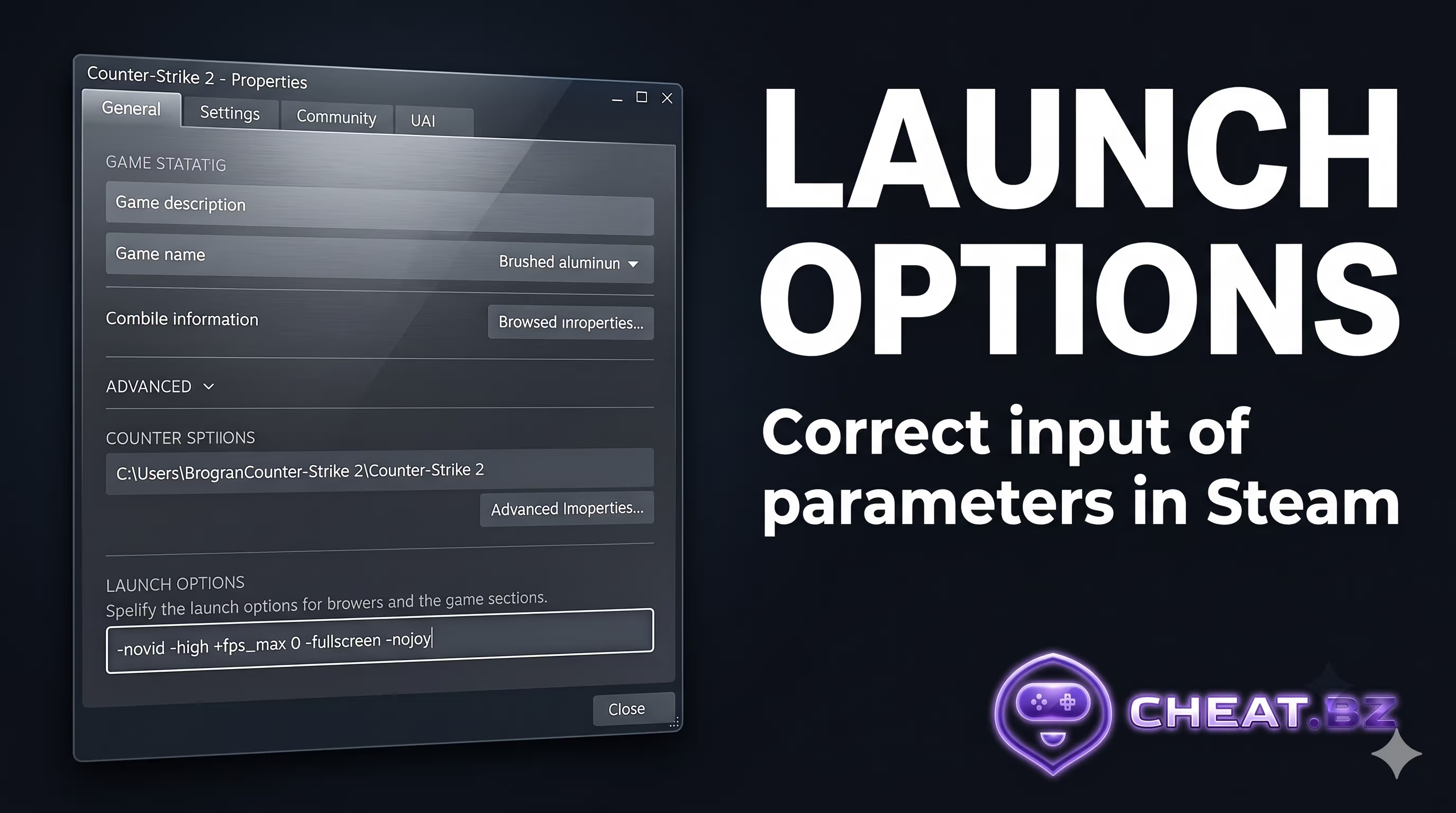
host_writeconfigon the final line to lock the settings into your config. - Right-click Counter-Strike 2 in your Steam Library, select Properties, and add
+exec autoexec.cfgto the Launch Options field. You can also check out our guide on CS2 launch options for FPS to maximize frame consistency and panel refresh rates.
Cheat Spinbots (Anti-Aim) and VAC Live Detections
Let's address the reality behind third-party cheat software and the myths surrounding it. In non-Prime matchmaking, players occasionally encounter opponents spinning erratically while facing straight down, yet landing instant cross-map headshots. These are neither console commands nor mouse macros. This behavior stems from aggressive cheat modules combining Anti-Aim mechanics with an automated Ragebot.

This technology originated on dedicated Hack-versus-Hack (HvH) community servers, where developers compete over algorithmic optimization rather than gunplay fundamentals. Bringing these tools into standard competitive lobbies ruins match integrity. Here is how the underlying exploit functions and why Valve's server-side protections now penalize it almost immediately.
How Anti-Aim and Hitbox Desynchronization Function in HvH
Under normal gameplay conditions, player orientation is strictly synchronized between the rendered client model, server-side position, and physical hitboxes. The direction your head faces on your monitor matches its orientation on the server. Cheat software intercepts outgoing network packets before transmission, artificially spoofing pitch (vertical) and yaw (horizontal) view angles.
Vertically, the pitch angle is forced down to an extreme 89 degrees ("down pitch"), folding the character model forward and shielding the head hitbox behind the torso and Kevlar armor. Horizontally, the software rapidly alternates or spins the model using Spin or Jitter modes. Opposing cheats attempt to reconstruct the actual hitbox positions using reverse-angle calculations called resolvers. While rival software fires at phantom angles, the user's ragebot returns lethal fire.
Behavioral Analysis of Angular Entropy in VAC Live and Ban Risks
During the CS:GO era, anti-cheat mechanisms primarily scanned system memory for known signatures, allowing private software to remain undetected for months. In Counter-Strike 2, security centers around VAC Live, which evaluates client telemetry directly on the server in real time. According to the official Valve Anti-Cheat support guidelines, any memory manipulation triggers enforcement actions. One of the core behavioral checks is mouse input entropy analysis.
A human hand on a mousepad produces natural micro-movements: sensor jitter, non-linear acceleration, and minor vertical deviations. A spinbot, by contrast, transmits mathematically flawless angular trajectories or teleports view angles across 180 degrees in a single sub-tick slice. VAC Live's server-side neural networks flag this artificial entropy profile instantly: the match is aborted mid-round with a red banner, and the offending account receives a temporary competitive cooldown ranging from 1 to 181 days. Because of this, players in competitive matchmaking avoid rage spinbots, choosing stealthy private CS2 cheats centered around smooth LegitBot smoothing, radar reveals, and visual ESP overlays that never modify network packets.
If you simply want to test wallbang angles, grenade lineups, or weapon recoil patterns, there is no need to risk your primary account. CS2 includes a dedicated sandbox environment: enable official CS2 practice commands on a local server to drill mechanics with infinite ammo, grenade cameras, and noclip.
Troubleshooting Common Input and Config Errors
Syntax typos and command mix-ups are common when tweaking console settings. If your character is not behaving as expected, check our troubleshooting list below to resolve typical configuration problems.

- Symptom: Character strafes sideways to the left instead of rotating in place.
Cause: You entered the legacy CS:GO command+left, which controls lateral foot movement in CS2.
Fix: Enter-leftin the console to stop moving, then submit the dedicated camera rotation command+turnleft. - Symptom: Configured binds reset every time the game restarts.
Cause: Commands were executed directly in the live console, and Steam Cloud restored default settings on launch.
Fix: Add your binds to anautoexec.cfgfile in yourgame\csgo\cfg\directory, appendhost_writeconfigat the end, and add+exec autoexec.cfgto your Steam Launch Options. - Symptom: Pressing tilde (~) does not open the developer console.
Cause: The developer console is disabled in game settings, or your active keyboard layout is conflicting with the tilde key mapping.
Fix: Navigate to Game Settings → Game tab → set "Enable Developer Console (~)" to "Yes". If the console still does not appear, ensure your keyboard input language is set to English (US). - Symptom: Character ran in circles while AFK, but the server disconnected after three minutes anyway.
Cause: The round ended, respawning your character against a spawn wall where movement velocity dropped to zero.
Fix: Circular AFK movement only works on continuous community servers without round resets. In standard matchmaking, round restarts will inevitably pin your model against geometry, triggering the 180-second idle kick. - Symptom: Using the quick-turn bind leaves the mouse sensitivity feeling too fast or sluggish after releasing the button.
Cause: The release command is bound to an incorrectm_yawcoefficient for your active display aspect ratio.
Fix: Check your aspect ratio in Video Settings. For standard 16:9 displays, set the reset command tom_yaw 0.022; for stretched 4:3 resolutions, usem_yaw 0.0165.
Verdict: Legit Configs vs. Cheat Software
Source 2 mechanics follow strict, predictable input logic. If you need to step away from your desk on a community server or compensate for low mouse sensitivity across a compact mousepad, native developer console commands provide everything you need. A well-configured autoexec, a circular +forward; +turnleft loop, and a calibrated m_yaw 0.1 quick turn bind handle these tasks with zero risk to your account.
Conversely, the era of unpunished rage spinbotting is over. VAC Live analyzes angular anomalies in real time, shutting down matches and issuing cooldowns across suspect accounts. Focus on dialing in your personal config, refining your mechanics, and exploring our other technical guides on the cheat.bz blog to master shooter networking and anti-cheat architecture.